
Mac Storage & RAM Widgets
Monitor disk space and memory from your desktop with beautiful widgets
Overview
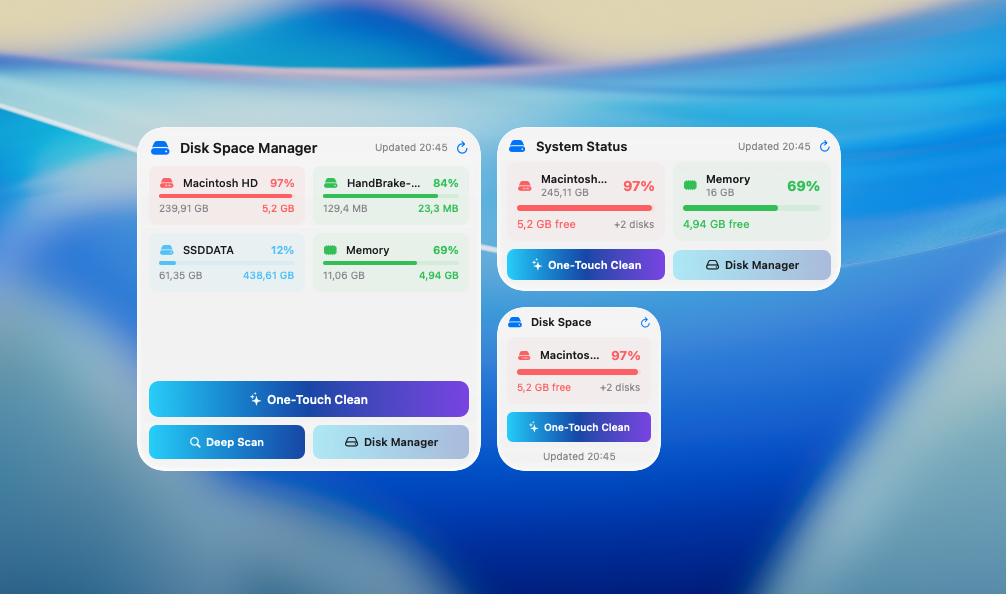
DiskCleanKit's Desktop Widgets bring real-time storage and RAM information right to your desktop with stunning visual design. Choose from dedicated Disk Space widgets or RAM Status widgets to monitor exactly what matters to you.
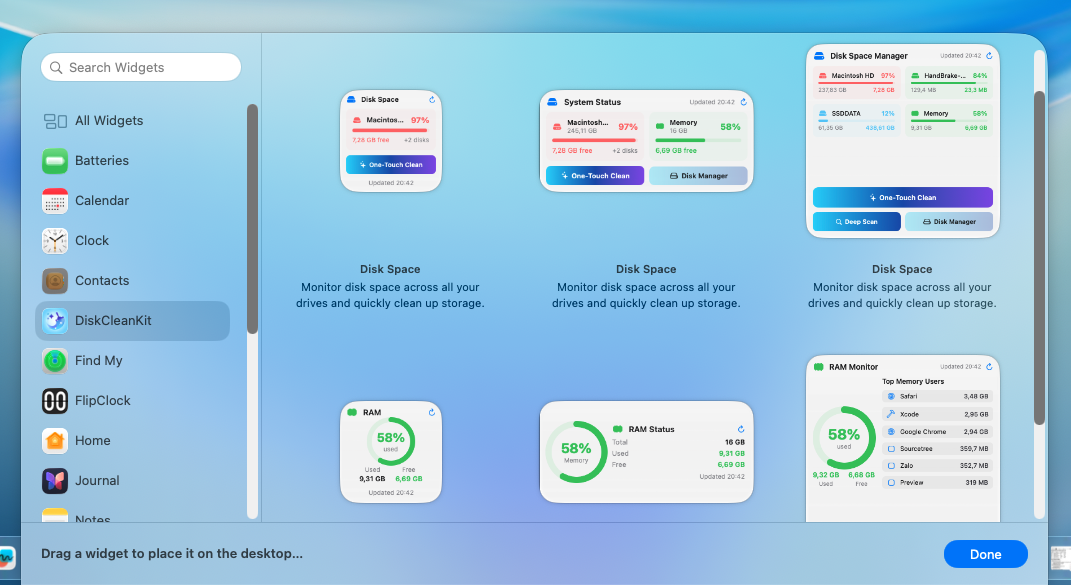
Disk Space Widgets show storage usage for all drives - system and external - with visual breakdowns of what's consuming space. See photos, apps, documents, and system files at a glance.
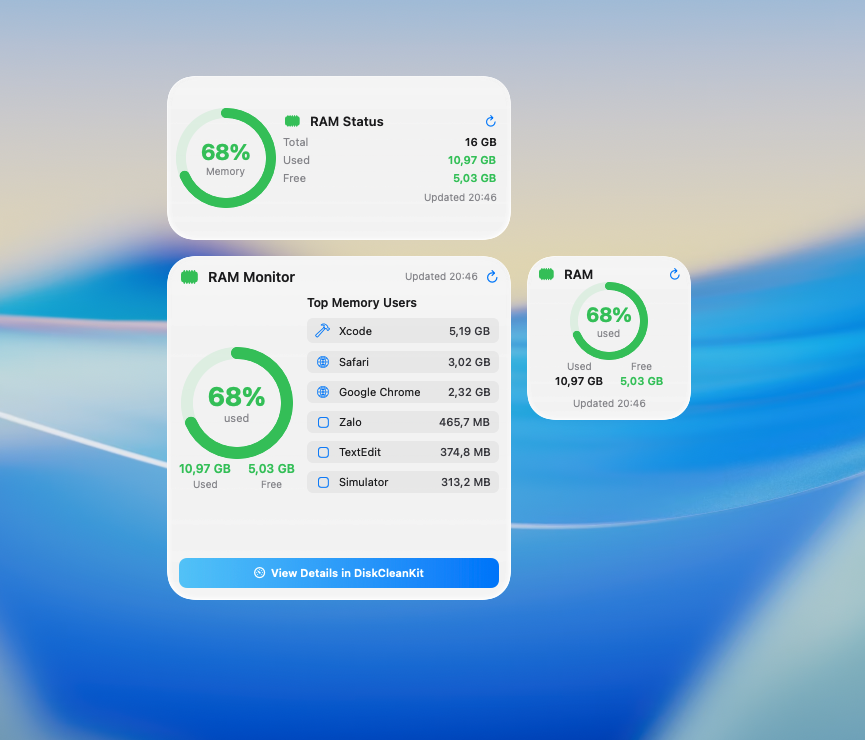
RAM Status Widgets (New in v5.0) display memory information including top memory-consuming processes so you can see what's using your Mac's resources.
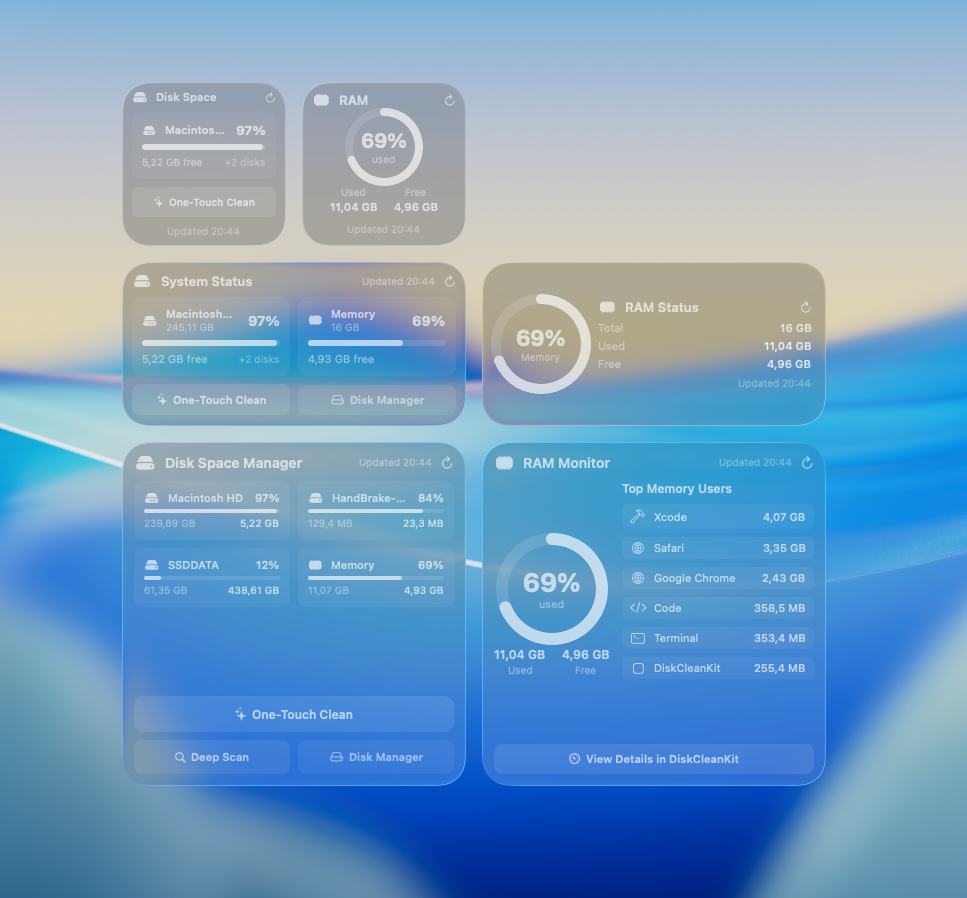
Liquid Glass Mode - Our widgets support beautiful translucent blur effects that integrate seamlessly with your desktop wallpaper.
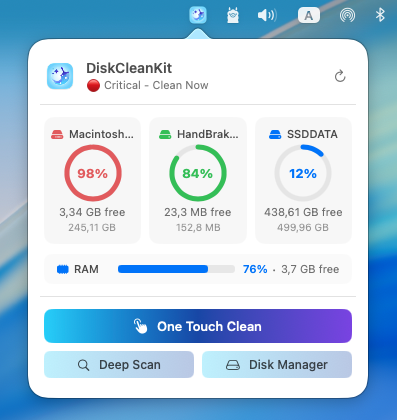
Multiple sizes available: small for minimal footprint, medium for balanced view, or large for complete details. Place them on your desktop or use the menu bar widget for quick access.
Key Benefits
Dedicated Disk Space Widgets
Purpose-built widgets showing storage usage, available space, and visual breakdown of what's consuming your disk.
RAM Status Widgets
Monitor memory usage and see top memory-consuming processes at a glance.
Liquid Glass Mode
Beautiful translucent blur effect that blends seamlessly with your desktop wallpaper.
Menu Bar Widget
Quick storage and RAM overview from your menu bar - click for detailed breakdown without cluttering your desktop.
Multiple Widget Sizes
Choose from small, medium, or large widgets to match your workflow and desktop layout preferences.
All Drives Support
Monitor your system drive and all connected external drives simultaneously with individual widgets.
Real-Time Updates
Storage and RAM information updates automatically - always see current disk usage and memory status.
One-Click Launch
Click any widget to instantly open DiskCleanKit and start cleaning when space is low.
How It Works
Open Widget Gallery
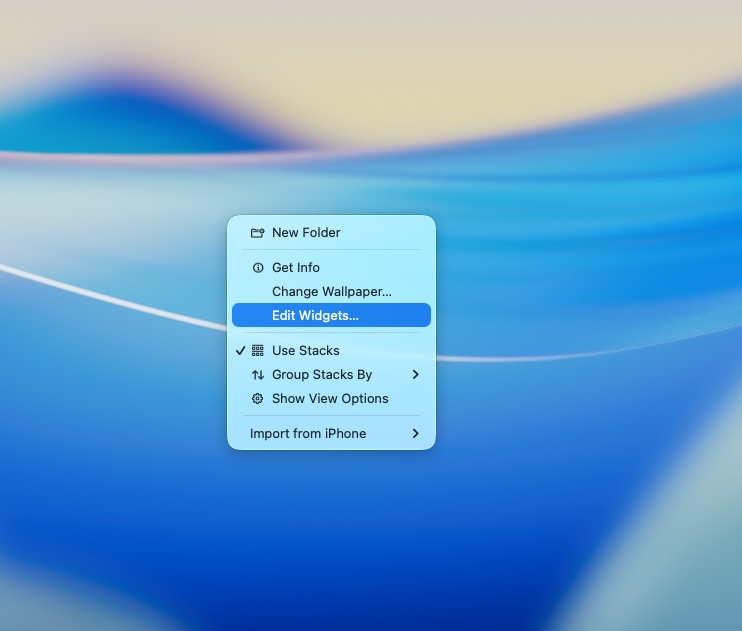
Right-click anywhere on your desktop and select 'Edit Widgets' to open the macOS widget gallery.
Find DiskCleanKit Widgets
Search for 'DiskCleanKit' in the gallery. You'll see both Disk Space and RAM Status widget options.
Choose Your Widgets
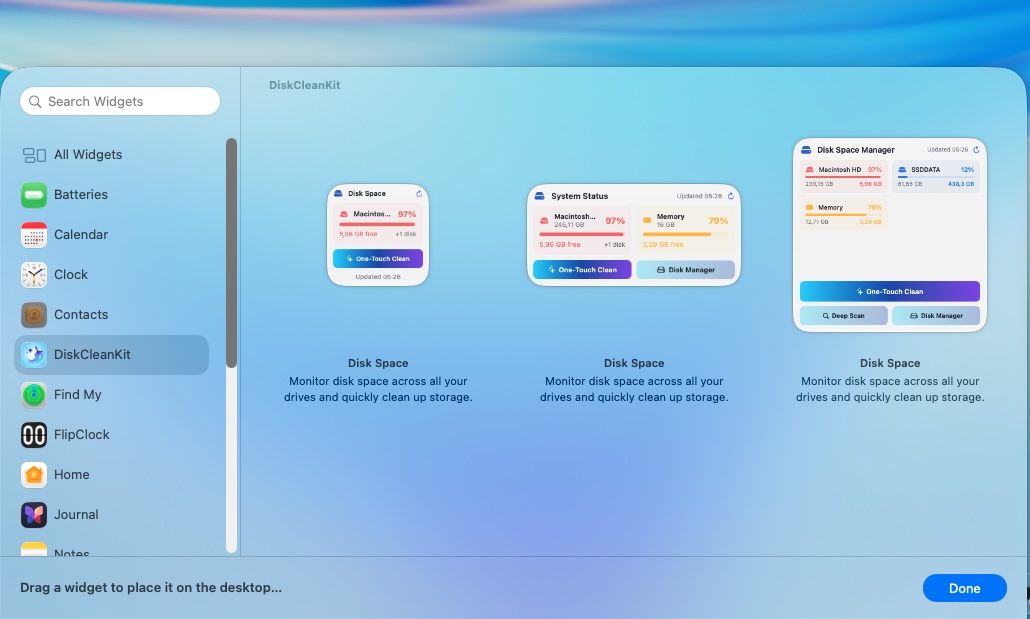
Select Disk Space widgets to monitor storage, RAM widgets for memory, or both. Pick your preferred size.
Enable Menu Bar Widget
Open DiskCleanKit preferences and toggle the Menu Bar widget for quick access without desktop widgets.
Customize Appearance
Widgets automatically adapt to Light/Dark mode and support Liquid Glass blur effect for a beautiful look.
See It in Action
Pro Tips
Use Disk Space widgets for storage monitoring and RAM widgets for memory - or both for complete system overview.
The RAM widget shows your top memory-consuming processes - great for identifying what's using resources.
Liquid Glass mode provides beautiful translucent effects - widgets blend seamlessly with your wallpaper.
Menu bar widget is perfect if you prefer a clean desktop - click it for instant storage and RAM details.
Widgets update automatically - no manual refresh needed to see current space and memory status.
Set up low storage alerts in DiskCleanKit preferences to get notified before your disk fills up.
Try Mac Storage & RAM Widgets Today
Download DiskCleanKit and experience the power of mac storage & ram widgets for yourself.